
How to take live notes with Condens
To capture real-time notes, go ahead and:
Create a Session in Condens before the interview starts.
Next, click Start live note taking — this will open a minimal pop-up window where you can jot down anything you deem note-worthy, and the Session will display that live notetaking is in progress.
Note: Please bear in mind that only one live note-taking instance can be active per Session at a time.
If you want to collaboratively take live notes, your colleagues can open the same Session in Condens, and then click the Join live note taking session button.

If you're using any other recording tool other than Zoom, please note down the time you started recording the session.
Simply type your observation and press Enter on your keyboard. Each note is automatically time-stamped, labeled by author, and can be color-coded.
Once you’re finished, look for the stop icon in the upper-right corner of the window and click it to end the live note taking session .
Sync with the recording:
If you’re using Zoom for your recordings, your notes will sync automatically.
For any other recording tool, click Upload or import recording. This will prompt a popup modal with the standard toggles for transcription, anonymization, and generating bookmarks, with the added option of syncing your live notes to match the starting time of the recording (this equals the moment when you pressed the record button, regardless of what happened in the recording, e.g. silence or waiting periods).
Managing notes in the transcript and bookmarks
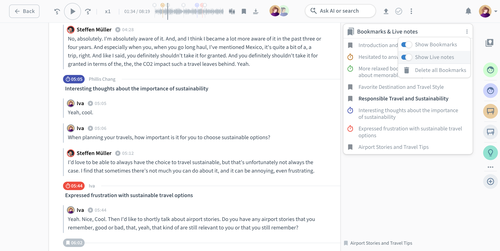
Once the recording is processed, your notes will appear in the transcript and alongside Bookmarks. They’re visually slightly different to help you distinguish them easily from the transcript and auto-generated bookmarks. If you color-code notes, that color will be visible in the recording timeline and in Bookmarks for quick navigation.
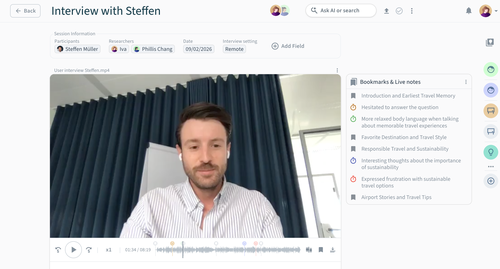
You can easily control the visibility of your notes in Bookmarks by clicking the three-dot menu in the upper-right corner. From there, you can use the toggle filter to show or hide notes, bookmarks, or both.
For each note, you can edit its:
Text
Placement (just drag and drop)
Color (click on the timestamp to change).
Exporting notes
You can export your live notes along with your transcript. To do so, click on the three-dot menu in the upper-right corner of the recording, and click Download transcript.
FAQs
Who can edit notes?
Currently, only Contributors can edit notes (their own or others').What if I type a note but hit 'Enter' a few seconds late?
No problem. You can click on the timestamp of any note after you've enered it in a live notetaking session to adjust the time manually so it aligns perfectly with the moment.Does this work with Ask Your Sessions?
Yes. Condens AI takes your time-stamped notes into consideration when answering questions via Ask Your Sessions, providing richer context to the answers.Can I keep my live notes private from other teammates?
Currently, Live Note-taking is collaborative, meaning anyone with access to the Session who joins the live note-taking view can see the notes being added in real-time.Does live note-taking record the call for me?
No, this feature is strictly for taking notes. You still need to record the audio/video using your preferred tool (Zoom, Teams, etc.) and upload it to Condens later.Can I use this with Google Meet, Microsoft Teams, or in-person sessions?
Yes! But it's not a bot joining your call. Note-taking happens in a browser window so it can work alongside any recording tool. Just remember to note the exact time of day you started recording so you can sync them up later.Does live notetaking also mean live analysis or observation rooms?
Live Notetaking is designed for capturing observations and remarks quickly, and does not in any way stream the video call itself.
